
Testing – Why You Should Test Your Website and How to Do It
Your website is one of your most valuable business assets. It introduces you to new customers, provides information 24/7, and shapes people’s first impression of your brand. But even the best websites don’t stay perfect forever.
Links break. Layouts shift. Updates create bugs. SEO can slip. What looks great on your laptop might fall apart on a mobile phone.
No matter how your website was built — whether you put it together yourself on Wix, Squarespace, or WordPress, hired a freelance designer, or worked with a professional agency — testing is essential. Even the most experienced designers can miss issues, and platforms or plugins update over time, which can create new problems.
So the question is: when was the last time you properly tested your website?
Most small business owners in Aylesbury — and everywhere else — rarely test their websites at all. But regular checks can reveal issues that quietly harm your Google rankings, frustrate your visitors, and cost you enquiries or sales.
The good news? You can run many of these tests yourself, for free, in just a few minutes.
Below, I’ll walk you through the most important website tests every local business should run — and the tools to do it.
Why Website Testing Matters
Even small problems can have a big impact. Regular website testing helps you catch:
- Broken links that make your business look neglected
- Accessibility issues that prevent some visitors from using your site
- Mobile layout problems that stop users from navigating
- Speed issues that cause people to leave before the page loads
- SEO issues that prevent your site ranking where it should
- Browser bugs that make your site look different in Chrome, Safari, Edge, or Firefox
Testing isn’t just about fixing things; it’s about ensuring your site performs at its best so customers are more likely to choose you instead of competitors.
1. Test for Broken Links
Pages move. URLs change. Typos happen. Broken links are one of the most common website issues — and one of the easiest to fix.
Dead links make your website feel abandoned, and Google sees them as a sign of poor website quality.
Try these free tools (in order of simplicity):
Each will scan your website and list any broken links so you can repair or remove them.
2. Test Website Accessibility with WAVE
Accessibility ensures your website can be used by everyone — including people with visual impairments, mobility challenges, or those using screen readers.
It’s not just good practice; it’s increasingly expected and, in some cases, required by the Equality Act 2010.
Use this free tool:
It highlights issues such as missing alt text, poor colour contrast, heading structure problems, and more.
Small improvements can make a big difference.
3. Test Your Website Across Devices & Browsers
Your website might look great on your own computer — but visitors use a wide range of devices and browsers. What works perfectly on a desktop might break on:
- iPhones
- Android phones
- iPads and tablets
- Older laptops
- Ultra-wide monitors
- Browsers like Chrome, Safari, Edge, and Firefox
Layouts can shift, text can overflow, images can resize badly, or buttons can become impossible to tap on mobile. With 70–80% of web traffic now coming from mobile devices, cross-device testing is essential. To test your website I recommend the free developer tools in the Google Chrome Browser. Chrome cannot fully emulate other browsers, but it can approximate them.
How to Test Using Chrome’s Built-In Tools
- Open your website in Google Chrome.
- Right-click anywhere on the page and choose Inspect from the menu.
- Click the Toggle Device Toolbar icon (top left of the developer panel – See image 1).
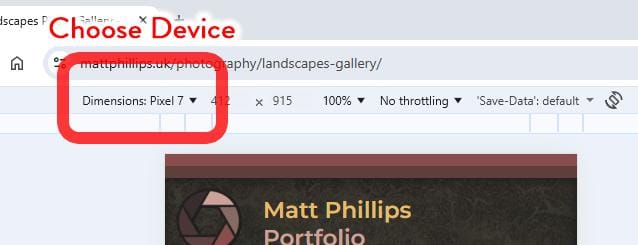
- Choose from a list of mobile devices (iPhone, Samsung, iPad, etc. – see image 2).
Image 1 – Toggle Device Toolbar
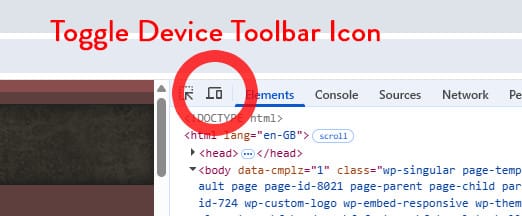
Image 2 – Choose Device to Emulate
4. Run SEO Implementation Checks
SEO isn’t just about keywords — it’s also about making sure your website is technically sound so search engines can understand, index, and trust your content.
What to Check
On-Page SEO Essentials
- Do your pages have unique page titles and meta descriptions?
- Are your headings structured clearly (H1, H2, H3)?
- Are your images compressed and using helpful alt text?
- Is your content easy to read and logically organised?
These are all small details that can make a big difference to your visibility.
Useful Tools for SEO Checks
The tools below will show you what search engine optimisation has been implemented on your site and highlight opportunities or ideas to help you improve it further. You can run free SEO scans using tools such as:
- Google Search Console — sign up here: https://search.google.com/search-console/about
- Seobility SEO Check — https://www.seobility.net/en/seocheck/
- SEOptimer — https://www.seoptimer.com/
- SEO Site Checkup — https://seositecheckup.com/
These tools scan your site for common issues and give you clear guidance in their reports.
However, remember that SEO scanners aren’t perfect — sometimes they flag issues that are actually configured correctly when you check manually. Still, they’re extremely useful for spotting opportunities and identifying areas to improve.
Check for Indexing Problems
Even well-built websites can run into indexing issues, meaning Google simply isn’t adding your pages to search results.
Using Google Search Console, you can quickly see:
- Crawl errors
- Blocked or noindexed pages
- Sitemap problems
- Pages Google tried to fetch but couldn’t
- Indexing warnings or coverage issues
Fixing these issues can massively improve your website’s visibility and ensure the pages you want to be found actually appear in Google’s results.
5. Test Your Website’s Speed and Performance
People won’t wait more than a few seconds for a website to load — and if your site is slow, visitors will leave before engaging, costing you enquiries and harming your search rankings. While the SEO checkers mentioned earlier will have provided some feedback on speed and performance, it’s important to dig deeper. That’s why I always recommend checking your site directly with Google PageSpeed Insights and Pingdom Tools, which focus specifically on loading times and performance-related issues.
Tools to use:
- Google PageSpeed Insights – https://pagespeed.web.dev/
- Pingdom Tools – https://tools.pingdom.com/
Look out for:
- Large, unoptimised photos
- Bloated or outdated plugins
- Slow or poor-quality hosting
- Render-blocking scripts and excessive JavaScript
Even small adjustments — compressing images, removing unused plugins, or switching to better hosting — can dramatically improve loading times and create a much smoother experience for your visitors.
6. Run Basic Security Checks
Every site — even small local websites — is a target for bots and automated attacks.
Check:
- Is your SSL certificate (the padlock) working correctly?
- Are your plugins and themes up to date?
- Is your WordPress login secure and protected?
Tools to try:
- WhyNoPadlock
- Sucuri SiteCheck scanner
- ScyScan (Be sure to select the “Don’t display results on leaderboard” option)
Security is easy to overlook until something goes wrong. Regular checks keep you safer.
7. Test Your Website’s User Experience
Finally, use your own website like a customer would.
Ask yourself:
- Is the main message clear within 5 seconds?
- Can users find your contact details easily?
- Does your navigation make sense?
- Are your forms easy to use?
- Is your call-to-action obvious?
You can even ask a friend or family member to try navigating your site and tell you what, if anything, confused them.
Sometimes real human feedback is the most valuable test of all.
Published 04/12/2025 by Matt Phillips.